Shopify Product CSV Format Explained (Complete Guide)
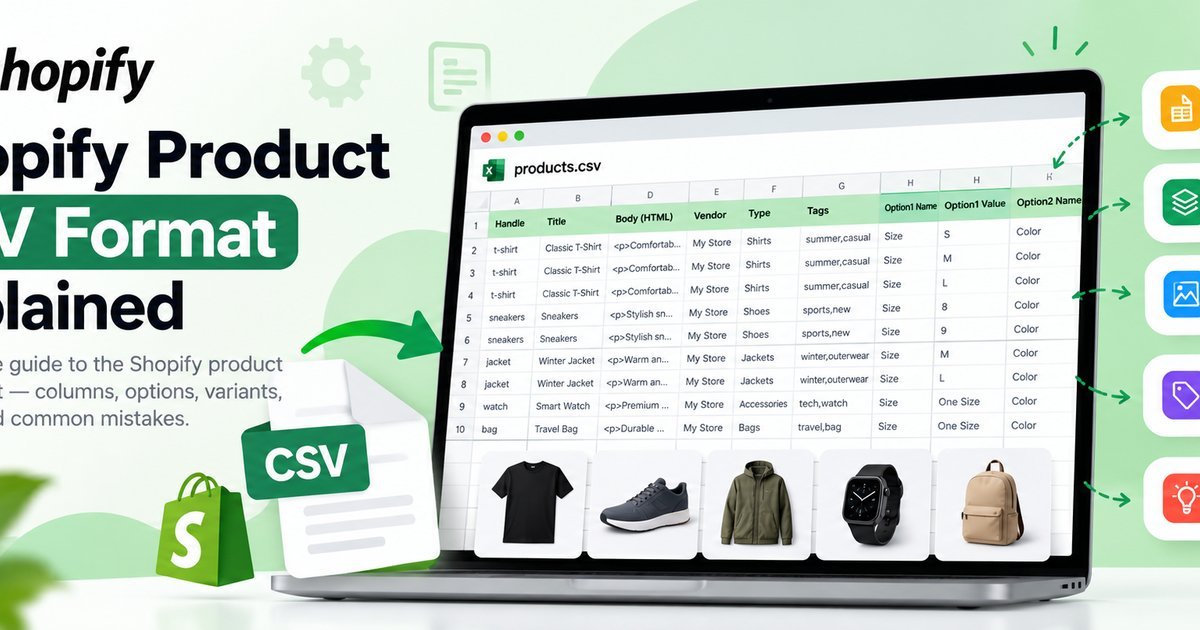
Shopify's product CSV format is the same whether you export it from Shopify or prepare it by hand for import. Once you understand a few core rules — handles, options, variants and images — the whole spreadsheet makes sense. This guide explains the format column by column, with the most common mistakes to avoid.
The basic structure
The file has one row per variant. A product with three sizes produces three rows, and a product with no variants produces exactly one row. The Handle column is what ties rows together: all rows with the same Handle belong to the same product.
Product-level fields — Title, Body (HTML), Vendor, Tags and so on — only need to be filled on the first row of each product, exactly like a file Shopify itself exports.
The most important columns
| Column | What it does |
|---|---|
| Handle | Unique URL slug. Groups all variants of one product together. |
| Title | Product name. Only on the first row of each product. |
| Body (HTML) | Product description. HTML tags are allowed. |
| Vendor | Brand or manufacturer name. |
| Type | Your custom product type. |
| Tags | Comma-separated tags used for filtering and collections. |
| Option1/2/3 Name + Value | Variant options like Size or Color, and their values. |
| Variant SKU | Stock keeping unit for the variant. |
| Variant Price | Price as a plain number, e.g. 24.99. |
| Variant Compare At Price | Original price — shows a sale when higher than the price. |
| Image Src | Image URL. Position 1 is the main product image. |
| Status | active, draft or archived. |
Options and variants
A product can have up to three options (for example Size, Color and Material). Each combination of option values is one variant row. A product with no variants still needs Option1 Name set to Title and Option1 Value set to Default Title — this is what Shopify uses internally for single-variant products.
Images in the CSV
The first image of a product goes on the product's first row with Image Position 1. Additional images go on their own rows below the variants, each with an increasing position number. A variant can also link to a specific image through the Variant Image column — useful when the image should change with the selected option (for example a red shirt photo for the red size).
Common mistakes to avoid
- Renaming or translating the header row — Shopify requires the exact column names.
- Leaving the Handle empty or reusing the same Handle for different products.
- Putting currency symbols in prices — use plain numbers like 24.99.
- Repeating product-level fields (like Title) on every variant row — they only belong on the first row.
- Forgetting Default Title for products without variants.
Skip the spreadsheet work
Our free Shopify Products Importer generates a flawless CSV in this exact format from any store link — no manual spreadsheet editing needed. For the full import walkthrough, read how to import products into Shopify.
Ready to import products?
Generate a Shopify-ready CSV from any store link — free, no sign-up.
Open the free tool